
Turning over a new leaf
Many of you have noticed that we have been very quiet for the last few months. There are two reasons for this. Firstly, we’ve been working hard and have made tons of progress on the game. Secondly, we have had some tough decisions to make about how we proceed with the project bring it to release and beyond.
Now, basic human instinct is to be wary of change, so we thought we would disclose as much as possible and explain what we have changed and why. As always we are happy to answer your questions on our community questions forum or you can go to MaverickFM direct.
tl;dr - the project is alive and nearing completion but we have had to make tough choices about our name, game design and funding model. We have moved to a modern site and forum at www.vanguardww2.com
A new name - Vanguard: Normandy 1944
This is perhaps the most obvious of our changes. There is a lot of history for the Traction Wars name, and there was a lot of back and forth about the pros and cons of changing it. Loss of recognition versus a name more relevant to the WWII theme. Ultimately we decided that choosing a new name would help us appeal to a wider audience, and help the game be more successful (linguistically, it makes more sense too!). We also hope that it reinforces to our current fanbase that we are taking things seriously, and despite years of development, we are near to the release of the game.
A new logo
With a new name comes a new logo too!. We loved the gears, but at the end of the day, they didn’t have anything to do with WWII did they? Our new logo is recognisable and more relevant to the game, and again it is all about appealing to a wider audience to help ensure a successful release.
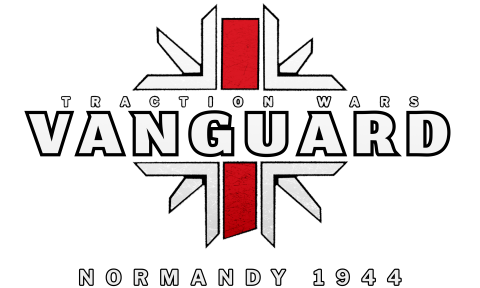
A new team name
We’ve always semi-unofficially been known as the Traction Wars Team, so we thought it was about time we gave ourselves a proper team name. We are now Pathfinder Games, and as we love side projects, we also have a logo.

A new website
Naga has done a complete overhaul of the website and migrated the community to a new, modern platform. New look, new web address, new everything except your login is unchanged. It’s been his baby for a while. Well, the whole game is his baby, but the last couple of months have been all about the website for him. We at Pathfinder Games HQ love the new look, so we are hoping you guys do too!

Updated game design
Our original design had large scale, open sandbox-style maps. We have decided to swap this out for more defined, tactical maps with a stronger emphasis on depicting historical events. We anticipate this will make the game more focused and therefore more enjoyable for you, the player.
A new game support plan
In our original development plan we were going to completely rely on community servers. We’ve decided that to be certain of having good quality servers available 24/7 we need to offer official dedicated servers of our own. That leads us onto the next, slightly controversial, topic...
Funding
This is hands down the hardest decision we had to make, and the one that will have the most impact on the success of the game.
We have discussed it at great length, changed our minds repeatedly, and explored every alternative we could think of. But there is no other way. In order to bring you the game we so want you to play we have had to plan a source of funding.
Over the last few years we have given our time and passion free of charge to make this game. Particularly General Naga, who has devoted years to this game and a fair amount of his personal savings. In order to run the servers, the player support, some marketing (we need players, or you may end up wandering around a ghost map), and bring you new features regularly we need some cash that is currently beyond our means. Because of this, we have come to the tough decision that we need to find a source of funding.
This will be done in two ways:
- Vanguard: Normandy 1944 will not be free as originally intended. It will cost approx. 15 USD during Early Access
- We will be launching a Kickstarter campaign in order to raise funds for launch
We will be launching the Kickstarter campaign in the next few weeks where you will be able to show your support by pre-ordering Vanguard. The game is now virtually ready for launch so this money will be used to cover the necessary upfront server and licensing fees costs that come with releasing a game.
Many of us have big dreams for Pathfinder Games and Vanguard, but we want to reassure you that we know where our roots are and where the drive for this game came from. We are not looking to make millions and all the money raised from early access will be pushed straight back into the game, paying for servers, support, and improvements.
We think that overall these are all positive changes, and they will help us to launch a more solid, professional game with the necessary infrastructure to back it up.
Conclusion
We hope you understand that this has been an incredibly tough decision for us and we have taken it in order to complete the labour of love which has been Traction Wars. We look forward to seeing all our friends on the shiny new forum.
You can find previously unreleased details about the game on the the new site as well as loads of upcoming news about Vanguard.
© 2018 Pathfinder Games Limited, All Rights Reserved.